Flipkart Label Cropper
Crop Flipkart (E-Kart) shipping labels down to the label itself, caption each one with its SKU and size, and get the whole batch back as one print-ready PDF.
Crop Flipkart (E-Kart) shipping labels down to the label itself, caption each one with its SKU and size, and get the whole batch back as one print-ready PDF.
LabelCropPro › Tools › Flipkart Label Cropper

A Flipkart label sheet is mostly waste. The label sits in a narrow column at the top of the page and a full tax invoice fills everything below it, so printing the sheet as downloaded spends an A4 page and a great deal of thermal ribbon on an invoice nobody at the packing bench reads. This page keeps only the label, free and in your browser.
Select every export you have — a morning's worth is normal — or drag them onto the page together. Nothing needs to be merged first.
Flipkart stacks the invoice under the label, and the label occupies only part of the width, so the cut runs both down and sideways. That is roughly 85% of the sheet removed.
The SKU, size and quantity are printed underneath in type large enough to read off a pile at arm's length, rather than the label's own small print.
Flipkart ships through one carrier, E-Kart, so there is no courier level to group by. The stack is grouped by the registered seller the label ships as, then ordered by SKU inside each one.
Everything you dropped comes back as one PDF under a timestamped name. There is no merge step — combining is part of the same pass.
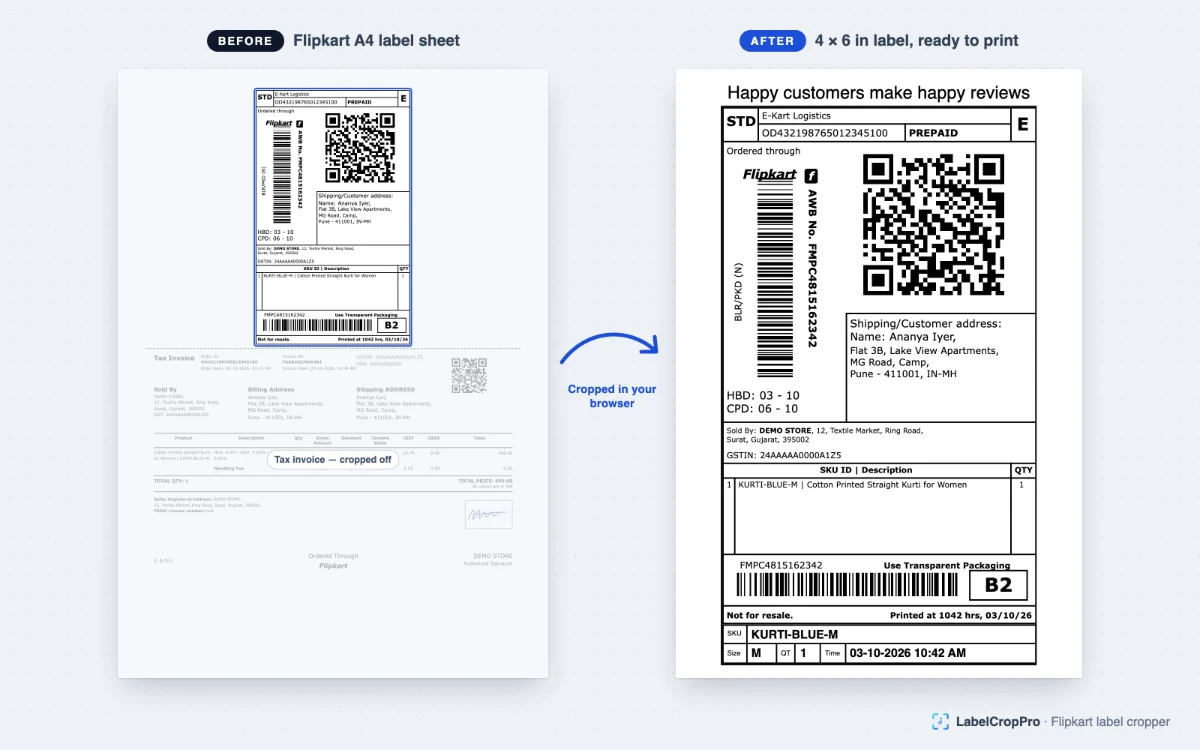
Flipkart puts the label and the tax invoice on one A4 sheet, with the label in a narrow column at the top. So the crop has to run across the page as well as down it — cutting only below the label would leave half a sheet of invoice standing beside it. That is roughly 85% of the page removed, and it is why a cropper written for the stacked-invoice marketplaces makes a mess of an E-Kart sheet.
Drop the PDF exactly as the Seller Hub gave it to you: nothing to rename, split or convert first. Any number of exports can go in together, so a morning’s orders downloaded in three separate batches still come back as one file in one continuous picking order.
Flipkart ships through one carrier, E-Kart, so a courier level would put every label in the same pile and tell you nothing. The stack is grouped by the registered seller the label ships as instead — the distinction that actually splits a Flipkart batch — and ordered by SKU inside each seller, which is the order the bench picks in.
An export can end with a dispatch summary page: how many packages the batch is in total, how many go out under each registered seller account, and a line for every distinct SKU, size and colour with the number of parcels carrying it and the units inside them. It counts packages rather than units — one label is one parcel handed over at the pickup — so the total printed on the page is the number to check the pile against.
On a Flipkart batch the account-wise count is the one that does the work. E-Kart is the only carrier, so a courier count is a single row saying nothing; the seller split is what divides the stack. The item list is what a picker walks the shelves with, and it comes off the same pass as the crop rather than being counted by hand once the labels are already printed.
What the crop leaves and what it prints onto are one decision, so the page size is chosen here rather than left to the printer dialog. A cropped Flipkart label is roughly 3 × 4.7in, so both thermal sizes are close to it and neither wastes a roll. On 4 × 6 the label is scaled up to fill the stock rather than sitting small in the middle of it; on 3 × 5, which is nearer its own shape, there is less to add. Either way the fit is worked out from the cropped page and the stock together, not from a percentage typed in beforehand. The third setting, crop-to-label, scales nothing at all — each page comes out exactly the size the crop made it, which is the one to choose when the labels are going onto a sheet rather than a roll.
The caption is composed onto the same page as the label rather than printed after it, so printing a Flipkart batch stays one parcel to one label of stock. Where the fit leaves room, the caption takes some of it rather than letting it stay white — up to a limit, because a caption that grows without one starts reading as the main event beside the thing being shipped. On the free tier the caption itself stops after the first five labels of a batch; the page sizing above does not.
The crop a Flipkart sheet needs is not the crop a scanned document needs. A general PDF cropper asks for one rectangle and puts it on every page, which is the right answer when the pages are all the same shape and a slow one when the box has to be drawn by hand, checked against a sheet, and drawn again tomorrow for tomorrow’s export. Here the rectangle is read off the page itself — the label’s own box, the dashed tear line beneath it and the Tax Invoice heading below that — so there is nothing to draw and no measurement to carry from one day to the next.
Measuring is also the safety. A hand-drawn box knows nothing about the page it lands on, so a sheet that came out laid out a little differently is cut in the wrong place, and the barcode can go with it. A cropper that reads the page can refuse instead, keeping a page it does not recognise whole rather than cutting it to a guessed shape. That is what makes it safe to crop Flipkart labels in bulk — a morning’s exports dropped in together, without opening each file first to see what is in it.
Every one of these tools runs inside the browser tab. The PDF is read on your own machine, the new file is written there, and neither is ever sent to a server — so your customers’ names, phone numbers and delivery addresses never leave your computer. Signing in decides whether the tools run, not what happens to your file afterwards. What a label PDF actually carries, and what Indian law expects of you with it, is in what is on the label PDF you are uploading.
Yes. Cropping, merging and exporting are free forever, with no label limit, and the free tier sorts your stack into courier piles. Plans start at ₹199 a month plus GST and add the picking order inside each pile, sorting by colour or size, the dispatch summaries, and the SKU caption on every label rather than the first five of each batch. Every visitor also gets seven days of the paid features to try, with no card.
Download the label PDF from the Seller Hub, open this page and drop the file in — or select several exports together, which is the normal way to use it. The crop, the SKU caption, the seller grouping and the merge all run on their own; there is no button to press and nothing to configure first.
Download it from the Flipkart Seller Hub as you normally would. LabelCropPro takes the file exactly as Flipkart gives it to you — nothing has to be renamed, split or converted first.
No. The PDF is read inside the browser tab and never leaves your computer, so customer names, phone numbers and delivery addresses are never transmitted or logged. It also means there is no upload to wait for, no file size cap and no queue.
Flipkart ships through E-Kart alone, so a courier level would put every label in one group and tell you nothing. The registered seller is used instead, which is the distinction that actually splits a Flipkart stack.
Yes, and it is the normal way to use it. They are cropped, captioned and sorted as one stack, so a day's orders downloaded in batches still print in one continuous picking order.
Yes, it is the same job under another name. On Flipkart the cut has to run sideways as well as down, because the label fills only part of the page width; both edges are read off the page itself, so nothing is clipped.
No. The tax invoice fills most of a Flipkart sheet, so the crop keeps the shipping label and drops the invoice — removing it is the point. The invoices are not lost: the crop is written into a new PDF and the file you dropped is never changed, so print that one whenever you need them.
Yes. The page is built to work at phone width, and it can be added to your home screen from the browser’s own menu so it opens like an app. The crop runs in the phone’s own browser, so what you need in front of you is a browser and the label PDF — there is nothing to install first.